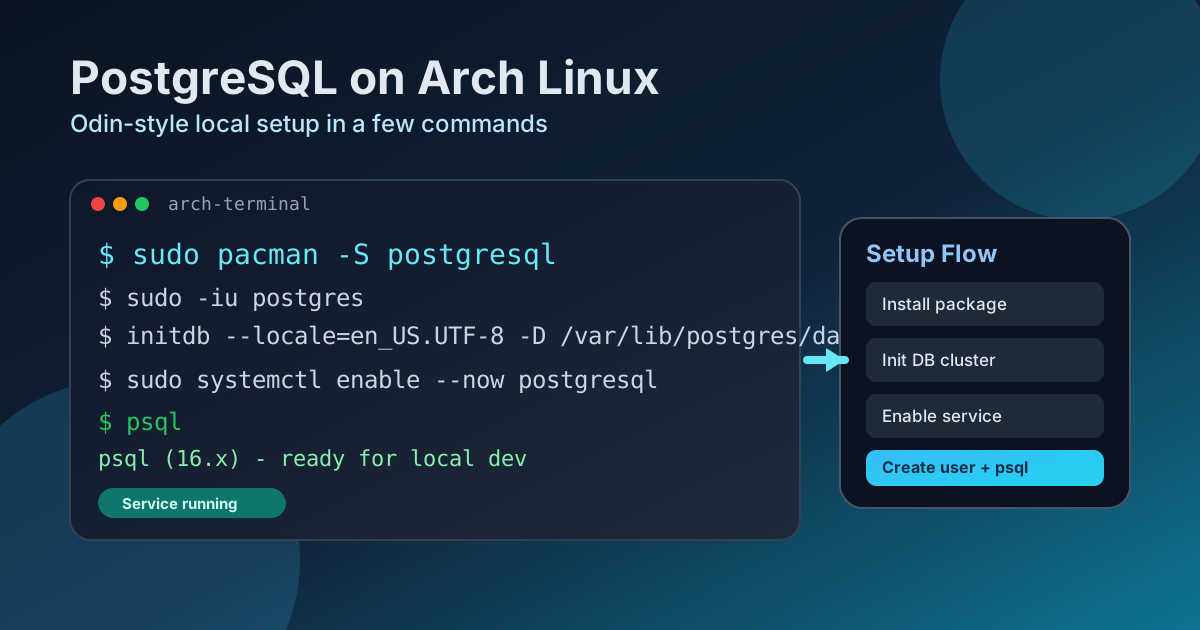
how to install PostgreSQL on Arch similary to the oding project approach
1️⃣ Install PostgreSQL (Arch way, no magic)
sudo pacman -S postgresqlIf this fails, your mirrors are broken. Fix that first — PostgreSQL isn’t the problem.
2️⃣ Initialize the database cluster (this is the step people miss)
Arch does not auto-init PostgreSQL.
sudo -iu postgres
initdb --locale=en_US.UTF-8 -D /var/lib/postgres/data
exit
If initdb is “command not found”, you didn’t install Postgres correctly. Period.
3️⃣ Start and enable PostgreSQL
sudo systemctl enable postgresql
sudo systemctl start postgresql
Check status like a grown dev:
systemctl status postgresqlIf it’s red, read the logs. Don’t guess.
4️⃣ Create your user (Odin-style)
Odin assumes local dev user access, not root DB nonsense.
Switch to postgres user:
sudo -iu postgresCreate a DB role matching your Linux username (replace diego if needed):
createuser diego
createdb diego
Exit:
exitNow this should work without a password (local socket auth):
psqlIf it opens → you win.
If not → auth config issue (rare, but we’ll fix it fast if needed).
5️⃣ Verify like Odin expects
Inside psql:
\conninfoYou should see:
- database: your username
- user: your username
- via local socket
Exit:
\q6️⃣ Node.js / Rails / Sequelize / Prisma ready
From here:
- Node +
pg→ works - Rails → works
- Prisma → works
- Docker later → also works
This setup matches The Odin Project’s intent, just without Ubuntu hand-holding.
Common Arch Gotchas (read this once, save 2 hours later)
- ❌ Forgot
initdb - ❌ PostgreSQL service not running
- ❌ Trying to connect as
root - ❌ Editing
pg_hba.confbefore understanding it
If you didn’t touch pg_hba.conf yet — good. Don’t.
TL;DR (for future you)
sudo pacman -S postgresql
sudo -iu postgres
initdb -D /var/lib/postgres/data
exit
sudo systemctl enable --now postgresql
sudo -iu postgres
createuser <your_user>
createdb <your_user>
exit
psql